Centurion Design on Any Card in Apple Pay: How the Hack Works
 Christian··5 min read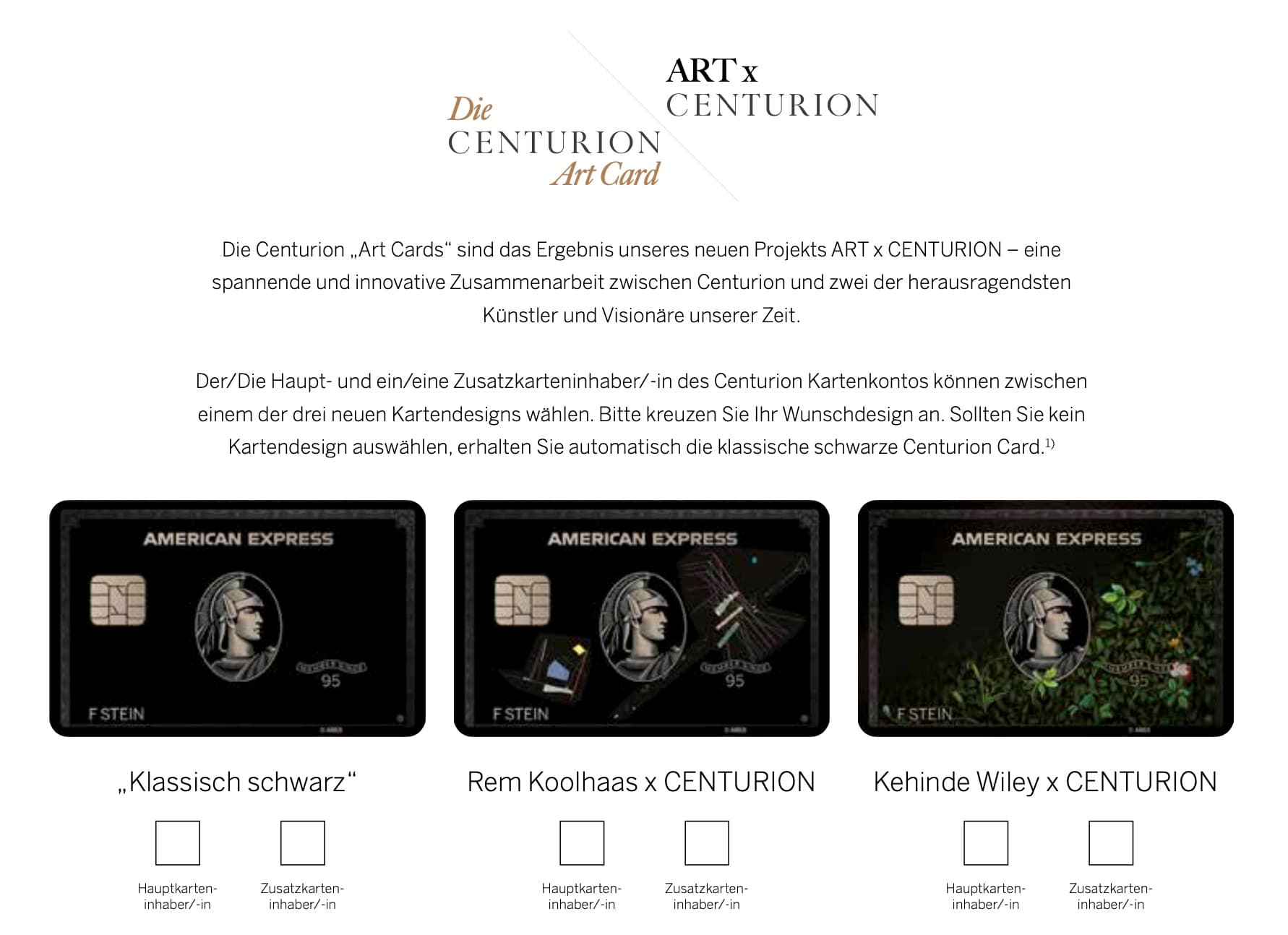
On TikTok, more and more people have a black Centurion in their Apple Wallet, including people who never got an invitation. The trick behind it is real: you can swap the image of any real payment card in your Wallet. The card keeps paying as usual, it just looks like the card you wish you had.
Here is how it works technically, which routes exist and how to get the original back.
What actually happens
The image of a card in Apple Wallet normally comes from the bank that issues the card. When you add a card, the iPhone downloads the official artwork and stores it in a local Wallet cache.
That is where the hack comes in. The tool AirCard overwrites those cached images with your own PNG and flushes the preview caches so Wallet shows the new artwork right away. The card itself, meaning card number, token, bank and payment function, is not touched.
Three things follow from that:
- Payments work as before. Apple Pay, Express Mode for transit, everything stays the same.
- The image only exists on your own iPhone. For the merchant, on the receipt and in your banking app, it is still the real card. The terminal never receives a card image.
- It is not permanent. An iOS update or a rebuild of the Wallet cache can bring back the original. Then you simply apply the image again.
Route 1: Mac or Windows via USB (iOS 18 and later)
This is the simplest route, because nothing has to be installed on the iPhone.
- Download AirCard. The app is free and open source; the Mac version is on the AirCard releases page on GitHub. It runs on Apple silicon and Intel and needs macOS 14 or later. There is a separate version for Windows 10 and 11, which also needs 64-bit iTunes.
- Launch the app. If macOS blocks it because it comes from an unidentified developer, choose "Open Anyway" under System Settings, Privacy & Security.
- Connect the iPhone with a USB cable and keep it unlocked. When asked "Trust this computer?", tap Trust and enter your passcode.
- Select the card. In AirCard, open the Wallet cards tab and click "Scan Cards". Then double-click the side button on the iPhone as if paying, authenticate with Face ID and tap the card you want to change. AirCard detects it.
- Apply the image. Drag the PNG onto the card preview, or click the preview and choose the file. You can also apply the same artwork to every card at once.
- Restart Wallet. Swipe Wallet away in the App Switcher, or restart the iPhone. The next time you open it, the new image is there.
Route 2: Directly on the iPhone (iOS 27 and later)
Since iOS 27 it also works without a computer, with AirCard-iOS. The catch: the app is not in the App Store and has to be sideloaded. No jailbreak is needed.
- Install AirCard-iOS. Download the IPA from the project's releases page and install it with a sideloading tool such as SideStore, AltStore or LiveContainer.
- Set up LocalDevVPN. Get the app from the App Store and run it in loopback mode (address 10.7.0.1 or 127.0.0.1). AirCard-iOS uses it to talk to the iPhone's internal services.
- Pair once. In AirCard-iOS, tap "Pair This iPhone" and allow local network access. Then go to Settings, Privacy & Security, Developer Mode, choose "Pair with AirCard-iOS" and enter the six-digit PIN shown in the app. This is only needed the first time.
- Have the image ready. Save the PNG you want in Photos or Files.
- Let it detect the card. Start detection in the Wallet section of AirCard-iOS, double-click the side button and tap the target card. Then pick the image.
- Restart Wallet. After flashing, close Wallet and open it again.
The right image
AirCard takes PNG files. To avoid stretching or cropping, the image should have the aspect ratio of a payment card, roughly 1.59 to 1, for example 1536 × 969 pixels. CardArt collects ready-made card artwork in that format. If you build your own, leave some room at the edges, because Wallet rounds the corners.
Getting the original back
- Credit and debit cards: open Settings, then Wallet & Apple Pay, then Express Transit Card, and tap the modified card once. The iPhone then downloads the bank's official artwork again. No need to remove and re-add the card.
- Transit cards and other cards: remove and re-add them, and iOS downloads the original. For stored-value cards, check what happens to the balance first.
- The Mac version does not back up the original image itself. The Settings route is the easiest.
What to know before you start
- Make a backup. The developers recommend backing up the iPhone before the first use. The tools touch system files, even if they only swap images.
- Reapply after updates. Any major iOS update can bring back the original.
- It is for your eyes only. At a hotel, a car rental counter or a lounge, what counts is the physical card and what the bank has on file. A Centurion in your Wallet opens no door the real card does not.
If you want the real design the official way, it only comes with the card itself. How that works is in the article on getting a Centurion invitation, what it costs in Centurion Card costs, and what it actually gets you, for example in the Centurion Lounges worldwide. And if you use Apple Pay with Amex, you should know the acceptance trick.